 Control
Two apps. Three minutes.
Control has two halves: a small app on the Mac you want to reach, and the app on the device you hold. Install both, pair them once, and you’re in.
Install Control for Mac.
It lives in the menu bar and shares that Mac’s screen. Free.
Do this step on the Mac. Open controlformac.com/start there, or AirDrop this page to it:
- Drag Control to Applications. It has to live there — macOS won’t load its camera extension from anywhere else.
- Open it. macOS asks once whether to open an app from the web — choose Open. Control appears in the menu bar, with no Dock icon.
- Grant Screen Recording and Accessibility. A Set Up Control window walks you through both; after the first, macOS asks you to quit and reopen Control.
- Allow local network when macOS asks, so your devices can find this Mac.
Runs on any Mac with macOS 15 or later, Apple silicon or Intel.
Install Control.
This is the window you look through. It’s in Apple’s public beta, TestFlight, until it reaches the App Store.

Point your iPhone or iPad’s camera here. It opens Control’s TestFlight invitation. Or open testflight.apple.com/join/WRU4tsNv on the device.
- Install Apple’s TestFlight app if the invitation asks for it — that’s normal.
- Tap Install on Control, then open it.
Watching from another Mac instead? Open the same TestFlight link on that Mac. iPhone and iPad need iOS 26 and Vision Pro visionOS 26; a Mac you watch from needs Apple silicon and macOS 15.
Pair them.
No account — your Mac keeps its own list of the devices it trusts.
Your Mac appears by name in Control. Tap it, check both screens show the same six digits, and confirm on each.
On the Mac, choose Add a Device from Control’s menu bar icon, then scan its code with your device — or copy the code and paste it into Add Mac.
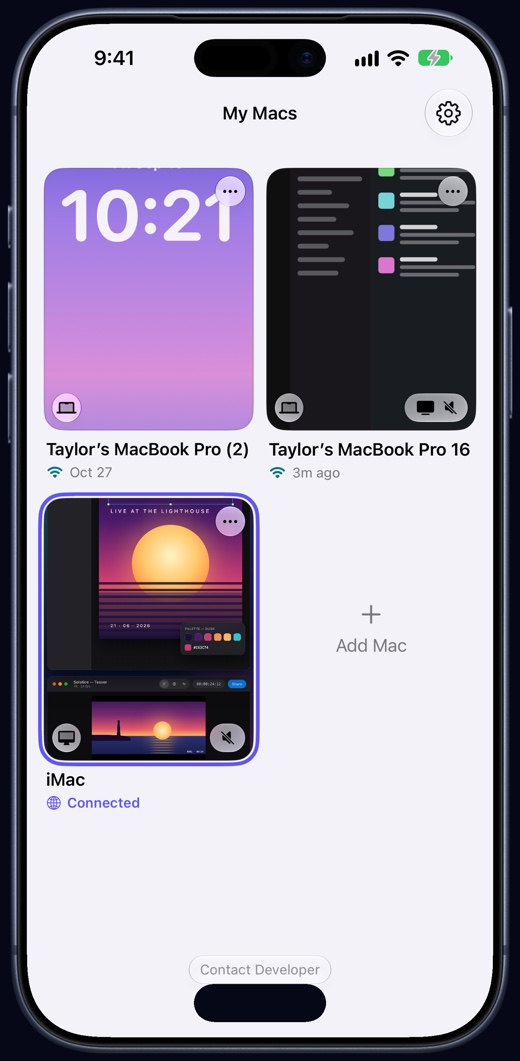
Tap your Mac.
On your own Wi‑Fi it’s free, forever. Away from home, tap it the same way and Remote connects you from anywhere — free during the beta. Control for Mac just has to be running in the menu bar.
That’s all of it.
Stuck on a step? Support has the fixes, and support@controlformac.com reaches a person.